Sunday, August 31, 2008


15 Google Search Tricks

Most of us use Google search to search on various topics, products, tips, etc. No doubt it’s one of the best search engines available out there. In order to search something we simply enter the keywords in the search bar and search for stuff but did you ever know that there are several built in functions within Google which makes searching stuff even easier. Some of you’ll know about them. But well if you don’t, then here they are:
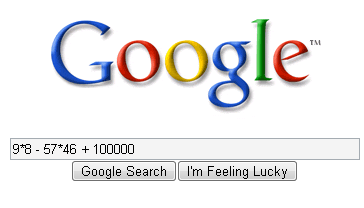
Google calculator:
Google search can be used as a calculator. It can calculate anything from the simplest math to the most complex equation. All you need to do is just enter the math in the search box and hit enter. You can use the following functions:
+ : add
- :subtract
* :multiply
/ :divide
^ :to the power of
sqrt : square root of a number
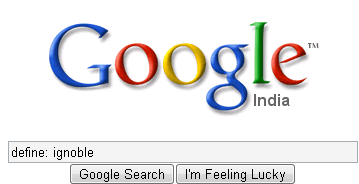
Dictionary Definitions:
You can define any word by entering “define:” following the word. For example define: ignoble
Google will display a list of dictionary definitions for that word.
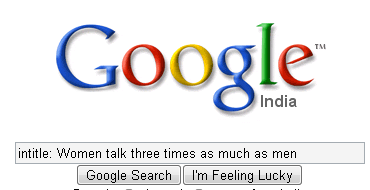
Search for a specific title:
Suppose you came across a great article which you really liked but unfortunately forgot to bookmark it then you can find it easily with the help of Google provided you know the title of the article. Here’s how you do it:
Let’s say you read an article “Women talk three times as much as men” then you can search for it by typing “intitle: Women talk three times as much as men”
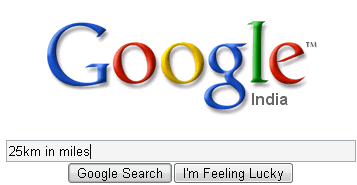
Google Convertor:
Using this feature you can convert units like millimeter into inches, kilometers into miles, liters into ml, etc. You can do so by typing ‘25km in miles’ for converting km in to miles, ‘50litres in ml’ for converting litres into ml, and so on.
Compare currencies:
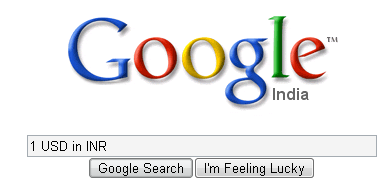
Google’s search has an inbuilt currency converter. It allows you to perform any currency conversion. All you need to do is just enter the conversion you’d like done into the Google search box and hit “Enter” or click the Google Search button. For instance: “1 USD in INR”
Weather Updates:
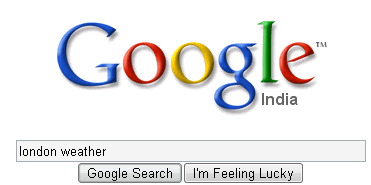
You can easily know the weather condition of a specific place. In order to find out, all you need to do is just enter the place name followed by “weather”. For ex: “london weather”

Search for specific file types:
There are various kinds of files available over the net. Searching for a specific file type isn’t really easy. But using this tip you can easily search for a specific file type.
For instance if you want to search for a guide, let’s say a ‘Guide to Building a Successful IT Career’ in ppt format. You can make use of the “filetype:” function. So in order to search for the PPT version of the guide you can enter in search bar ‘Guide to Building a Successful IT Career filetype:ppt’
Search on a particular website:
If you want to search for something from a particular site using Google search then you can do so by using the “site:” feature. Here’s how you do it:
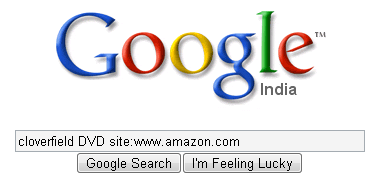
Let’s say you want to search for cloverfield DVD on Amazon, you can do so by typing “cloverfield DVD site:www.amazon.com”
Get the local time anywhere:
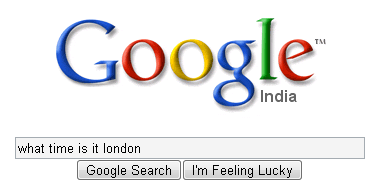
Wanna know what time is it in London now? You can ask Google by typing “what time is it London” in the search bar. You can also enter “time (location)” without the quotes.
Remove unwanted search results:
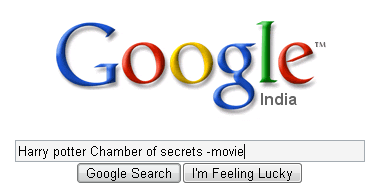
Suppose you wanted to search a Harry potter book review but you ended up in getting reviews of the movie rather than the book. Well in this case you can make Google to exclude the movie results from the search. You can do so by adding “-movie” at the end of the term. For instance: “Harry potter Chamber of secrets -movie” This will give search results excluding the movie- The chamber of secrets.
Search for URLs:
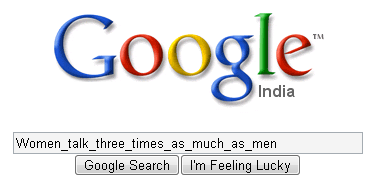
You can even search for URLs in Google search.For instance: “Women_talk_three_times_as_much_as_men”. You can also use “.” “-” instead of “_“. The search will bring up results with the URLs containing the above words entered.
Track flight status:
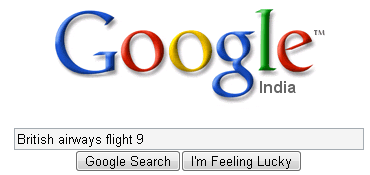
You can also track a particular flight status. All you need to do is just enter the airline and flight number into the search box and hit enter. You’ll get the arrival and departure time of the flight right inside Google’s search results.
Search Google groups by the subject line:
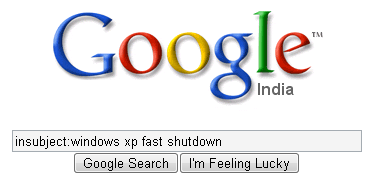
You need to be in the google groups search page before attempting this query; otherwise it might not work correctly. Using the “insubject:” function you can search google groups by the subject line. For instance “insubject:windows xp fast shutdown”
Find related sites:
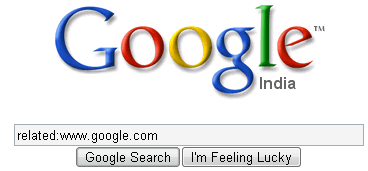
Suppose you find an interesting website and you would like to find some other alternative to this site then you can do so by using “related:” function. For instance if you want to search an alternative for google.com you can do so by entering “related:www.google.com”
Find links to a specific URL:
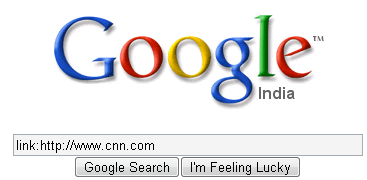
You can find the webpages which have a link to a specific URL using the “link:” function. This is really great as it will help you if you own a website, you can easily find out the pages linking to a page in your site. To use it, you need to enter the whole URL after “link:”
For instance “link:http://www.cnn.com”
Well that’s it for now, hope you liked them. If you know more feel free to mention them here.
Whois Lookup service:

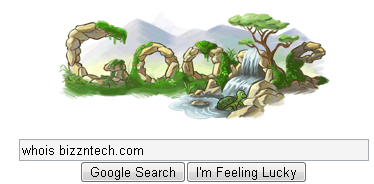
You can also search for information on a particular domain name. Just type in “whois domain.com” and hit enter. You’ll get to see the creation and expiry dates of the domain.
Suggests words, phrases and their results:

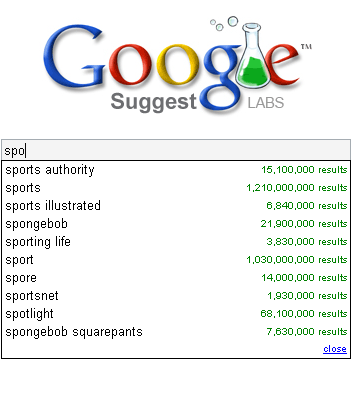
This is really helpful if you aren’t able to spell a particular word or you would like to know the results a particular word would contain when searched. Click here to do a search with suggestions.

Get movie showtimes:

If you are a movie buff and would like to know the showtimes of a particular theatre then you can do so by typing “showtimes zipcode” For instance “showtimes 93455” for knowing the for Santa Maria, CA 93455.


Top 11 Obscure Google Search Tricks


Searching on Google can be a magical experience once you find out how to make your search queries efficient. By making efficient I mean using some tricks or the cheat sheet provided by Google itself to quickly find what you actually require. Having being hooked onto Google for a long time now, I have come across some amazing search tricks which can change the way you look at Google today.

In this article I will list down the search tricks which I use quite frequently. Be it finding time, meanings or watching the cricket score, searching PDF’s, with Google as the search engine life cannot be more simpler. Here are the 10 most amazing Google Search tricks:

1. Different Types of Files at your will
How many times would you have asked for materials (PDF, PPT, DOC) for a particular topic from a friend? Its almost everyday that we might have the necessity to ask them either for knowledge, preparing a presentation, white-paper or for case studies. Such times it mostly difficult to look out what to exactly search for because most of the times you don’t know about the topic at hand. But this petty keyword unleashes its lethal power at such occasions.

Let’s say I want to implement a case study on SOA which means I have to read a lot of information for SOA. So I just have to find materials which might have already been uploaded on the web in the form of PDF’s, DOC’s or PPT’s. These materials can be easily obtained by doing a search for:

2. Scholarly Search
If you want some authenticity of the materials then it would be better to find the materials from educational institutes or universities. For this use the Google scholar search. But suppose you don’t like to switch to Google scholar search you can add the same query with an additional parameter to the normal Google search box,

3. Meanings of any word in an instant
Now you do not have to carry a dictionary or install a dictionary software just for the purpose of finding out a meaning of a word. With the wealth of information in Google’s hands, its a piece of cake to find out the meaning of the word. Just use the define: keyword. The meaning would of course be displayed but also a set of other links which might have an alternative definition are also given out with the link to read more about it.

You would argue here that, a dicitionary gives out more information than this. But what about words that don’t actually fall within the vocabulary. Suppose you want to know what SOA (Service Oriented Architecture) is then you would have no choice. Google Search comes to your rescue in this case,

4. Find the time of any location
Many of us might be probably working for client which are based at different locations. And communication has to be carried out frequently carried out in such cases. But before a communication you have to know which time zone the location is falling into otherwise you would be causing a disturbance.

I have seen people installing time zone software for showing the time of the location they would be calling to. But with Google at your hands you don’t have to install any software. It would be just simple to use a query for finding the current time such as,

psst….look closely the time on the little clock graphic. It also shows the perfect time!

5. Weather at your fingertips
I had been to GOA for a Christmas vacation in the last week of December. But I made a mistake of not finding out the temperature of GOA before leaving. Had I known that it is hot even in the winter I would not have made the mistake of carrying additional luggage consisting of blankets and jackets.

If you are thinking to visit a place it is useful to know what the temperature of the place is before hand, it can make efficient packing. Google helps you here too. Just use this query without asking anybody or waiting for the news to make a weather report. I wish I had thought of this!

6. Google does live commentary too!
Indians are cricket fanatics. But its amusing to see the organizations here trying to put together tactics to devoid cricket lovers from wasting time to watch the cricket scores instead of doing their work. What I think they fail to understand is that by blocking the live cricket scoring sites they are actually making the employees more curios and provoking them to hunt for proxy networks or listen to the radio or chat with their friends elsewhere.

Jokes apart, you actually don’t need proxy networks to view the live cricket scores if you at least have access to Google. If you want to find the latest info about all the cricket matches then just type,

But if you want to find out only about a particular match then use only the names of the two playing nations,

Remember that the scorecard will come only when the play is going on.

7. Calculate with your browser
Every OS has a calculator inbuilt but when the browser is the thing which is constantly open whey bother to open up a calculator. Open Google and straight away type your mathematical expression. You can go all the way from basic arithmetic to trigonometrical expressions. This is simply amazing stuff accomplished by Google.

8. Compare your currency with others
Now that the dollar is declining, the rest of the world must be busy trying to check the impact of the dollar on their currencies. But first of all one must know how much a particular currency amounts to when cashed in another currency. Google’s inbuilt currency converter just does this.

9. Keep track of the stocks
With the booming stock market it is very important to track the stocks on a day to day basis. Putting a stock ticker in the search box is the most obvious thing you would think of. But it is not always you would remember the stock ticker, you should add the keyword “stocks:” to the company name.

The best part of the obtained result is that it provides a chart which shows the trend in the company’s stock along with important statistics.

Note: Currently the results are restricted to the companies listed in the US stock markets.

10. Wanna find some faces?
This is most interesting trick. You might be needing images for various occasions and searching for images is the most difficult thing because what we expect might not be possibly mapped to a query. But Google has a parameter in place for images in situations we need an image which describes a face.

Suppose I search for the term “happy” then the Google results page displays smileys. But I would like to use images of happy people. Even if I choose the term as “happy face” the results don’t show images which contain people. For this there is a parameter “imgtype” which you can use with the URL. For this put in the URL as follows:

There are many more variations which can be bought about with the above tricks thus making your search experience not only enriching but also exciting. If I have missed any tricks of common usage, feel free to mention it.

Update 1: Google keeps on experimenting new ways of searching. If you liked the above tricks then don’t miss out my article which mentions how to use the new search experiments introduced by Google. Believe me, they are brilliant!

Update 2 : Search for your favorite movie information with Google and enjoy it even more. Have fun with the 5 Most Fantastic Movie Search Tricks With Google.

Update 3 : Why not carry out the search for exactly what we are looking for? Get excited for trying out 5 Most Exciting Search Tricks with Google Operators

11.Using a combination of advanced search operators that specify music files available in an Apache directory listing, you can turn Google into your personal Napster. Go ahead, try this search for Nirvana tracks:


-inurl:(htm|html|php) intitle:"index of" +"last modified" +"parent directory" +description +size +(wma|mp3) "Nirvana".


(Sub out Nirvana for the band you're interested in; use this one in conjunction with number 7 to find new music, too.) The same type of search recipe can find comic books as well.

Tuesday, August 26, 2008


Google changes its favicon, works really hard to find something worse

Google_favicon_family.jpg


Google must have had some feedback about its dull and horribly weak-looking new favicon, which is no doubt appearing in a browser tab very near you. The Official google Blog has put up a not-very-spirited defense. This points out that they hadn't changed it in 8.5 years -- yeah, that's a really good reason for making something worse.

Google also says: "The design process we went through was rigorous and interesting". In other words, "we screwed it up, but a lot of people did a lot of work to make sure we screwed it up really thoroughly." This is known in the industry as "the Microsoft defence".

Another good excuse is: "we wanted to develop a set of icons that would scale better to some new platforms like the iPhone". So trying to look good on a couple of million phones is a good reason for looking terrible on a billion desktops and notebooks? Would you like to take a vote on that?

The clincher is that the blog shows a whole panel of variations, which just goes to show that a monkey could have picked a better favicon with a pin.

Still, I shouldn't really complain about Google using a lower case g as a favicon, because the Guardian already uses a lower case g as a favicon. I should be grateful that they have made their's look worse than ours ;-)


Revert Back To Old Google Favicon


You all must have noticed the new Google favicon image, which is now a simple blue-coloured g, instead of the colourful-boxed G. Some people are liking it and have appreciated the new favicon, but on the other side there are people, like me, who think that the old favicon was better. I really don’t like this favicon, and have found a way by which you can revert back to the old one.

Revert Google Favicon

It’s a very simple Greasemonkey script (What is this?) which changes the new Google favicon with the old favicon image.

Requirements

The requirements are simple. You need to have Firefox (download here) with Greasemonkey script installed. Or you can alternatively use some add-on for Internet Explorer to run Greasemonkey scripts.

How To Revert Back To Old Google Favicon

  • Download and install this Greasemonkey script.
  • Enable it and enjoy!

You might need to refresh your already opened Google pages after installing this script for the changes to take effect.


Sunday, August 17, 2008


New chatback styles

We recently added the ability to create Google Talk chatback badges in several new styles. These options are available by clicking on the “Styles” drop down menu when creating a chatback badge. Examples of the new types of formats can be seen on the right.

New chatback badge style examples
One line basic:
Two line basic:
Hyperlink and status icon: Chat with Itala

The two borderless versions of the badge make it easier to fit into your page and customize the appearance as you like. You can just paste the code where you want the link to appear. If you want to further tweak the appearance, you can add some style parameters: Add fontfamily and fontsize to choose a specific font or size, and textcolor and linkcolor to set the colors using a hexadecimal RRGGBB value. You can add these parameters to either the new badge URL or to the iframe's src URL in the generated HTML. You can also use the h and w parameters to specify the height or width of the badge.

For example, &fontfamily=courier%20new&fontsize=13&linkcolor=000000&textcolor=880000 will give you Courier New 13 with black for the link text and dark red for the rest of the text. Here is an example of how this looks with the classic badge:

In addition to providing more flexibility in terms of appearance, chatback can now be used on web sites that don’t allow frames. For these sites, use the new HTML version of the badge. This version can’t display a status messages but it will show your status as a colored circle anywhere you can embed an image. And if you can’t embed an image (like in an email message), you can use the hyperlink by itself or just the URL.

To create a badge, visit http://www.google.com/talk/service/badge/New or, if you are a Google Apps user, visit http://www.google.com/talk/service/a/DOMAIN/badge/New replacing DOMAIN with the name of your domain.