Thursday, May 28, 2009


Fighting back against hacks and spam

(From Google Enterprise Blog)

Most webmasters would agree that hacking and spamming are a real problem, but many may not be aware of how vulnerable their websites might actually be. Even more importantly, many webmasters may not know where to go to find resources that can help them protect their site, or show them what to do if their site has been hacked or spammed.

I want to share some examples that might help build understanding of the problem and motives behind hacking and spamming, and also offer some online resources to help organizations avoid these problems as much as they can.

If we look at [site:.edu free ringtones], we will see a lot of examples of different educational institutions being exploited by hackers for their high traffic and well-known names. For aspammer , acquiring links from a high-traffic site can artificially give their sites more worth and manipulate search results in their favor.

An example we often see is hackers using an exploit in a sites database (SQL Injection) or in sites that have unchecked areas for user input (XSS). A way to look for this is to run the site: query mentioned above (site:.edu free ringtones) and take look at the URLs of the sites that show up. If you see some trailing parameter like [/?p=ringtones], then your site is most likely hacked. Here are some steps you can take to prevent your site from getting hacked:

  • One way to avoid SQL injection hacking is to escape all dangerous characters from input fields, with "dangerous characters" being those that can access and change the database behind your site.
  • For both SQL injection and XSS hacking, creating a layer between the user input data and your back-end systems creates a space where you can check inputs and make sure that a user is not entering malicious code.
  • Another potential exploit can occur if the root or any subdirectory of your site uses an open source CMS like Joomla or WordPress. In this situation, it is really important to make sure the CMS software is updated with every new release to make sure you are using the most secure version.

For more on hacking, check out this Google Webmaster Central Blog post: http://googlewebmastercentral.blogspot.com/2009/02/best-practices-against-hacking.html.

Forums can also be points of access for hackers and spammers. Does your site have a forum? If so, do a quick site search on your forum section [site:example.com/forum/]. Do you see anything fishy in the snippets, like "freeringtones"? If your forum is not about ringtones , this may very well be a case of comment spam. Any sort of platform where users can freely post their own comments, including hyperlinks, is a target for comment spam – especially if your website ranks high in the search results. The main reasoning behind comment spam is aspammer wants to get as many people as possible to visit their site and spend money there. The spammer can post several links on forums, guestbooks, etc., pointing to their own site, to help artificially boost their ranking in search results. Here are some precautions you can take:

  • Every time a user wants to add a profile or comment on the forum, require them to complete a CAPTCHA. This creates an obstacle for automated software to generate profiles and comments.
  • Add spammy keywords like "free ringtones" and "online casino" to a blacklist to block comments like this from showing up.
  • Install a plug-in that automatically detects and blocks spam posted to the forum. Akismet is an example of this.

For more on comment spam, check out this Google Webmaster Central Blog post: http://googlewebmastercentral.blogspot.com/2008/09/keeping-comment-spam-off-your-site-and.html.

Resources
Staying aware of the latest spam and hacking trends, regularly monitoring the activity on your site, and being vigilant about updating your applications and plug-ins are key to keeping your website safe fromspammers and hackers. We've provided some Google resources here:

Webmaster Central Blog (http://googlewebmastercentral.blogspot.com/) – Search for blog posts written by Googlers about how to secure your site.

Webmaster Central Channel on YouTube (http://www.youtube.com/googlewebmasterhelp) – See video tutorials on all things webmasters.

Webmaster Help Center (http://google.com/support/webmasters/) – Find help articles on various webmaster concerns, including what to do if your site has been hacked.

Webmaster Help Forum (http://www.google.com/support/forum/p/Webmasters) – Chat with your fellow webmasters about past and present experiences with being spammed or hacked, and get a variety of perspectives on how to protect your site.

Webmaster Tools (http://www.google.com/webmasters/tools/) – If you're not already registered, this is a great way to monitor how your site looks on Google. You can see what kind of sites are linking to you, and the top queries users type in to get to your site.

In addition to the links provided above, it's also a good idea to seek out more knowledge that is specific to your web server, applications, and plug-ins.

Wednesday, May 27, 2009


How do I create a Blogger Feed?

  1. Enter your blog's web address in the "Ready to Burn?" form found on FeedBurner's homepage and at the bottom of the pages in the Blog and Podcast sections. If you plan to publish a podcast with your Blogger feed, check the "I am a podcaster" box. Click Next ».

    The Identify Feed Source page should appear.

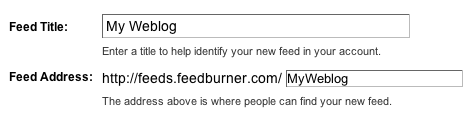
  2. On "Welcome", make sure the title and FeedBurner address (URL) of your new feed are values you prefer.

    The Create or Sign In To Your FeedBurner Account page should appear.

  3. Also on this page, create a FeedBurner account by picking a username and password and supplying your email address.

    When you've supplied all the required information on this page, click Activate Feed ». A "Congrats" page should appear.

  4. Read all of the information on "Congrats", then click Next » to continue with the setup process.

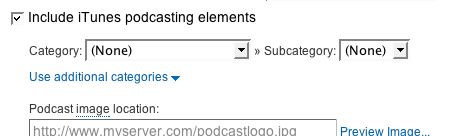
  5. If you selected "I am a podcaster" on the homepage, configuration options for our SmartCast service will appear. Here you can supply categories and other information for iTunes, append a copyright message, and submit your podcast to Yahoo! Search.

    When you are finished, click Next ». Configuration options for FeedBurner stats services should appear.

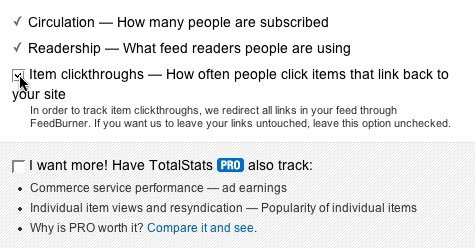
  6. On the stats configuration page, select the level of feed stats detail you want.

    Click Next » to finish the setup process and enter our feed management interface.

    You're now ready to make your FeedBurner feed available on your Blogger site!

Tracking 100% of your feed traffic: Redirecting your Blogger feed to your FeedBurner feed

Blogger can make sure all feed traffic for your blog content goes to your FeedBurner feed. This ensures your FeedBurner stats are comprehensive and accurate; even subscribers to the 'Original Feed' are routed through FeedBurner. To redirect your feed:

  1. In a new browser window, sign in to your Blogger account.

  2. From the Blogger Dashboard, click the Settings link for the blog you want to promote.

    The Settings page for your selected blog should appear.

  3. Click the Site Feed link under the Settings tab.

  4. Type your complete FeedBurner feed address into the Post Feed Redirect URL text field. Make sure you type in your entire feed address including the "http://" portion.

  5. Click Save Settings.

    You should see the message "Settings were Saved Successfully".

  6. Blogger will now redirect all feed traffic for your blog to your FeedBurner feed.

    Note: If you are using the redirection feature within Blogger to send all of your feed traffic to your FeedBurner feed, you may want to modify the code we provide in order to keep your subscribers with you, even if you leave FeedBurner.


More controls for community owners

(From Orkut Blog)

Like many of you, a number of us on the orkut team are proud owners of active communities on orkut. While we love to see the discussions and divergent opinions that often come up, there are definitely times when the passion of our community members becomes overwhelming. Members sometimes start flame wars – creating new topics or polls to get their point across on the community home page, topics list and polls list pages. This degrades the overall experience for the other community members and often leaves us searching for ways to keep things under control. 

To help with this issue, I developed a feature that does exactly that. Community owners now have access to a new setting: "only owner and moderators can create forum topics," which they can turn on and off as they wish. If you want to give it a try, just go to the "edit profile" page of your community.


When passions run high, you can now make use of this feature within your community. You can also try creating a few new forum topics like "Rant Room" or "Suggest new forum topics," where community members can continue their discussions without affecting everyone else's experience. 

Sometimes the moderators on our communities even create new polls or forum topics to gauge how things are going. We've found the question: "Which member do you find most disruptive to quality conversations in the community and should be kicked out?" to be a particularly effective way of making sure that things stay civil.

We hope this new feature makes it even easier to maintain active and engaged communities on orkut. Have feedback about this feature or other advice for how to keep a community cool during heated discussions? Head to the orkut U2U group and give us a heads up.


Spotlight on Developers: Gadgets to Visualize Data in New Ways

( From Google Blog )

Continuing our Spotlight on Developers series, we present a few gadgets that give you new and exciting ways to visualize your data.


Our spreadsheet gadgets API is all about giving developers the power to extend the functionality of Google Docs spreadsheets. The following four spreadsheet gadgets display information in unique ways.

1. Tree Map Gadget (By Yaar Schnitman, former Technology Program Manager intern) - A color-coded area diagram that helps you understand complicated hierarchical data at a glance. Required columns: one or more text columns describing a hierarchy of items, and a single numeric column describing the weight of each item. Optional: supply one additional numeric column to create a heat map. Check out this visualization of the 2008 U.S. budget.


2. Advanced Word Cloud Gadget (by Seth Glickman, former Web Development Intern) - Word clouds are a great way to visualize the popularity of words from large amounts of text, say for example a feedback form, where the more often used words appear in a larger font. With this advanced world cloud gadget, you can customize your word cloud by choosing the color, excluding words of your choosing (like "or" and "the"), and best of all, turn each tag into a link with an easy-to-use search string. Check out a word cloud for Lincoln's Gettysburg Address.


3. Spider Chart Gadget (by Greg Marra, former Software Engineering Intern) - With spider charts you can visually compare the values of multiple attributes. In this example, the handling, acceleration, top speed, firepower and armor of a race car is compared to a tank.


4. QR Code Gadget (by Greg Schechter, former Software Engineering Intern) - Use this gadget to quickly encode data into the QR code format from a Google Docs spreadsheet so that it can be scanned and read by mobile devices that have a QR code reader. An easy way to send web addresses, phone numbers and notes. Try out the QR code gadget.


There are two ways to get started using these gadgets. First, you can use the templates above since they already have the gadget inserted within the spreadsheet. Or you can add these gadgets to your own spreadsheet by creating a new spreadsheet and using Insert > Gadgets. There you can check out all of the gadgets that are available.

Posted by: Ronald Ho, Product Manager, Google Docs

Spotlight on Developers: Spreadsheet Mapper

Posted: 25 May 2009 06:27 PM PDT

This next post in our Spotlight on Developers series highlights a gadget that combines spreadsheets and the My Map feature in Google Maps. In addition to using it while househunting like our guest author did, you might even find it useful to plot out points of interest for a vacation or a road trip this summer. :)

Last year, I was looking to move into a new apartment. Using a spreadsheet in Google Docs was a convenient way to list the apartments I was interested in, and creating a My Map in Google Maps was a great way to plot their locations. But, I wished there was a way to see both the map and spreadsheet at the same time. Some tools already existed to convert spreadsheets into KML, but these don't work well when you're updating a spreadsheet on a daily basis.

Thus the Spreadsheet Mapper gadget was born. The idea is simple: within a spreadsheet, generate a map based on address information in any column. This allowed me to quickly list the apartments I was interested in, while seeing how far they were from work.

Developing the gadget was easy. I was already familiar with programming a Google Gadget, and it was wasn't difficult to use the extensions that pull spreadsheet data into the gadget.

Try it out here: http://spreadsheets.google.com/ccc?key=pXGIgGeMaalnJDWqXurqyKA


Or add the gadget to your own spreadsheet with these instructions: http://spreadsheets2kml.appspot.com/help

Posted by: Alec Go, AdWords Sales Engineer (and spreadsheet fan)