Monday, September 28, 2009


Google Blog Updates (Google Docs, Gmail, Blogger, Search)

View online files using the Google Docs Viewer

Posted: 26 Sep 2009 07:03 AM PDT

Google Docs Viewer allows you to view certain files online. Enter the URL of a PDF, Powerpoint or TIFF document in the Viewer and we'll display it directly in the browser with no download required.

Editions included:
Standard, Premier, Education, Team and Partner Editions

Languages included:
US English

How to access what's new:
Visit the Google Docs Viewer to generate the URL.

For more information:
http://googledocs.blogspot.com/2009/09/view-online-files-using-google-docs.html

---------------------------

Jump to the information you want right from the search snippets

Posted: 25 Sep 2009 12:30 PM PDT

For most search results, Google shows you a few lines of text to give you an idea of what the page is about — we call this a "search snippet." Recently, we've enhanced the search snippet with two new features that make it easier to find information buried deep within a page.

Normally, a search snippet shows how a page, as a whole, relates to a your query by excerpting content that appears near and around where your query terms show on the page. But what if only one section of the page is relevant to your search?

For more information:

---------------------------

New in Labs: Hide read labels

Posted: 25 Sep 2009 08:18 AM PDT

Posted by David de Kloet, Software Engineer

A lot of people want to see their labels in order to see which ones have unread messages, but they don't want a long list of label names cluttering up the left hand side of their inboxes. To help out with this, we've made a Gmail Labs feature called "Hide read labels." Turn it on from the Labs tab under Settings and all your labels without unread messages will be hidden under the "More" menu. Labels with unread messages will automatically show up, unless you've explicitly chosen to keep them hidden.

For more information:

---------------------------

Blogger's Wanted

Have opinions about Blogger? If so, we'd like to meet you. We are looking for participants willing to document their blogging practices over a few weeks and answer some interview questions. This will help us better understand your needs and keep improving Blogger.

Interested? Sign up here.

For more information:

Friday, September 25, 2009


New in Gmail Labs : Hide Read Labels

http://3.bp.blogspot.com/_JE4qNpFW6Yk/Srze5bvDLqI/AAAAAAAAAZ8/Iq1v8mOGfn4/hide_unread_labels.png

A lot of people want to see their labels in order to see which ones have unread messages, but they don't want a long list of label names cluttering up the left hand side of their inboxes. To help out with this, we've made a Gmail Labs feature called "Hide read labels." Turn it on from the Labs tab under Settings and all your labels without unread messages will be hidden under the "More" menu. Labels with unread messages will automatically show up, unless you've explicitly chosen to keep them hidden.

[hide-read-lables.jpg]


This is particularly handy if you use your inbox as a to-do list where unread messages are the outstanding things you need to take care of. If you use that method along with labels like "Home" and "Project X," it's easy to see all your to-dos in context. With this Labs feature on, labels with outstanding to-dos will be bold and have a number next to them; everything else will be hidden in the "11 more" section:

We think this is a nice addition to the new labels navigation bar and hope you like it. Tell us what you think in the Gmail Labs forum.

Original source : http://gmailblog.blogspot.com/2009/09/new-in-labs-hide-read-labels.html
Related Link : http://gmailblog.blogspot.com/2009/07/labels-drag-and-drop-hiding-and-more.html
Gmail Blog : http://gmailblog.blogspot.com/

Wednesday, September 23, 2009


Google Blog Updates [Including Gmail]

Google climate change tools for COP15

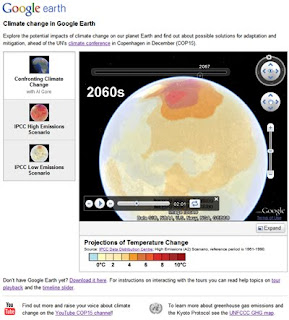
In December of this year, representatives from nations around the globe will gather in Copenhagen to discuss a global agreement on climate change. The objective is to reduce global warming emissions sufficiently in order to avoid the most severe impacts of climate change and to support the global community in adapting to the unavoidable changes ahead. Denmark will act as host for this fifteenth Conference of the Parties under the United Nations' Climate Change Convention, known as COP15.

https://blogger.googleusercontent.com/img/b/R29vZ2xl/AVvXsEgeWNwZHGhZKRUHrRrnSEWfe-yziu74tA-aL-n1FvLKICL2caR2Z_4eqNfNF7d_Iu8ajVUeR1BRlEgoOBDm_XJ6yz_2AmzgBDTvES1LFJCAc7uBY76IyBvnrWtgenNCxxGQIJ72uMATIqzm/s320/cop15geo_blog_post1.jpg

In collaboration with the Danish government and others, we are launching a series of Google Earth layers and tours to allow you to explore the potential impacts of climate change on our planet and the solutions for managing it. Working with data from the Intergovernmental Panel on Climate Change (IPCC), we show on Google Earth the range of expected temperature and precipitation changes under different global emissions scenarios that could occur throughout the century. Today we are unveiling our first climate tour on Google Earth: "Confronting Climate Change," with narration by Al Gore. Stay tuned for more tours in the coming weeks!

Read More : http://googleblog.blogspot.com/2009/09/google-climate-change-tools-for-cop15.html


Push Gmail for iPhone and Windows Mobile


Those of you who live in your Gmail inboxes usually want to know what's happening with your email more instantly than standard fetch mail on your phone allows. Sure, using Gmail in your mobile browser gives you all the benefits of conversation threading and starring, but you still have to refresh every time you want to check for new mail.

When we launched Google Sync for Contacts and Google Calendar earlier this year, an over-the-air, always-on connection to sync mail was noticeably absent. We heard your requests loud and clear, and starting today you can use Google Sync to get your Gmail messages pushed directly to your iPhone, iPod Touch, or Windows Mobile device.

You can set up push Gmail by itself or choose to sync your Contacts and/or Calendar as well. If you're using an iPhone, make sure you're running iPhone OS version 3.0 or above (on your device, click Settings > General > About and scroll down until you see Version). If your software is out of date, follow Apple's upgrade instructions. Then, visit m.google.com/sync from your computer for set up instructions. If you're already using Google Sync, you can just enable push mail.

Read More : http://gmailblog.blogspot.com/2009/09/push-gmail-for-iphone-and-windows.html

Tuesday, September 22, 2009


New in Gmail : Push Gmail for iPhone and Windows Mobile

Those of you who live in your Gmail inboxes usually want to know what's happening with your email more instantly than standard fetch mail on your phone allows. Sure, using Gmail in your mobile browser gives you all the benefits of conversation threading and starring, but you still have to refresh every time you want to check for new mail.

When we launched Google Sync for Contacts and Google Calendar earlier this year, an over-the-air, always-on connection to sync mail was noticeably absent. We heard your requests loud and clear, and starting today you can use Google Sync to get your Gmail messages pushed directly to your iPhone, iPod Touch, or Windows Mobile device.

You can set up push Gmail by itself or choose to sync your Contacts and/or Calendar as well. If you're using an iPhone, make sure you're running iPhone OS version 3.0 or above (on your device, click Settings > General > About and scroll down until you see Version). If your software is out of date, follow Apple's upgrade instructions. Then, visit m.google.com/sync from your computer for set up instructions. If you're already using Google Sync, you can just enable push mail.

Once you're set up, new messages are normally pushed to your phone within seconds. While this type of speed is pretty awesome, push connections tend to use more power than fetching at intervals, so don't be surprised if your battery life isn't quite what it used to be. We've done a lot of work to optimize power usage, but if you prefer to save battery life, you can always turn off push in your phone's settings and fetch mail every 30 or 60 minutes instead.

Those of you who live in your Gmail inboxes usually want to know what's happening with your email more instantly than standard fetch mail on your phone allows. Sure, using Gmail in your mobile browser gives you all the benefits of conversation threading and starring, but you still have to refresh every time you want to check for new mail.

When we launched Google Sync for Contacts and Google Calendar earlier this year, an over-the-air, always-on connection to sync mail was noticeably absent. We heard your requests loud and clear, and starting today you can use Google Sync to get your Gmail messages pushed directly to your iPhone, iPod Touch, or Windows Mobile device.

You can set up push Gmail by itself or choose to sync your Contacts and/or Calendar as well. If you're using an iPhone, make sure you're running iPhone OS version 3.0 or above (on your device, click Settings > General > About and scroll down until you see Version). If your software is out of date, follow Apple's upgrade instructions. Then, visit m.google.com/sync from your computer for set up instructions. If you're already using Google Sync, you can just enable push mail.

Once you're set up, new messages are normally pushed to your phone within seconds. While this type of speed is pretty awesome, push connections tend to use more power than fetching at intervals, so don't be surprised if your battery life isn't quite what it used to be. We've done a lot of work to optimize power usage, but if you prefer to save battery life, you can always turn off push in your phone's settings and fetch mail every 30 or 60 minutes instead.